
Available for the following plans: Essentials, Engage, Elite, Unlimited HR+Payroll
By using timesheets correctly, you as a manager can gain clarity about your team's work hours and breaks, while also providing clear guidance to your staff on how to log and submit their timesheets.
Primary and secondary managers can use the Timesheets feature to approve, decline, and edit submissions from their direct reports. Through the Timesheets menu, managers can also adjust entries before approval and offer feedback when a timesheet is declined.
Interactive learning
Click here for an interactive demo
Approve timesheets
- Select the Time menu.
- Select the Timesheets Management submenu.
-
Select the timesheets you would like to approve, or click
Select All if you would like to approve
all available timesheets at once.
-
Click Approve Selected to approve the
timesheet(s).
Decline timesheets
- Select the Time menu.
- Select the Timesheets Management submenu.
-
Select the timesheets you would like to decline, or click
Select All if you would like to decline
all available timesheets at once.
-
Click Decline Selected to approve the
timesheet(s).
-
Enter the reason that you have declined the timesheet. The
reason will be made visible to the employee.
Edit timesheets
- Select the Time menu.
- Select the Timesheets Management submenu.
- Locate the timesheet you would like to edit.
-
Select the Actions drop-down menu,
then select Edit.
- Review the timesheet details and make any required changes.
- Select Update.
Further information
Approve a timesheet for a terminated employee
Timesheets for a terminated employee cannot be approved directly. To approve their timesheets, you will need to follow these steps:
- Reactivate the employee in the Employment Hero platform.
- Approve their timesheets once they are active again.
- Terminate the employee after the timesheets have been approved.
How do I know whether my timesheets have synced to payroll?
Once a timesheet is approved, it will sync to the payroll classic platform. This is indicated by a green clock, which you can hover your cursor over to view sync details.
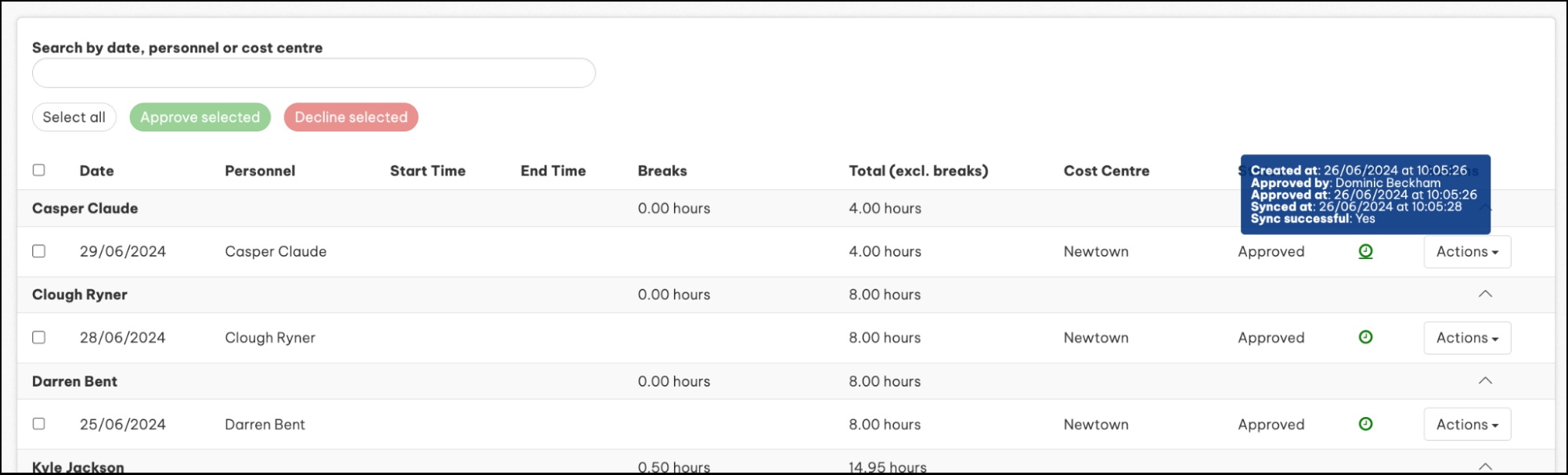 A red clock indicates that the timesheet has not synced to payroll.
What do I do if my timesheets have not synced to payroll?
If your timesheets have not synced to payroll, do the following:
- Review your Payroll Integrations Issues dashboard for more details.
- Ensure your Employment Hero and Payroll classic platforms are successfully integrated.
- Verify that the employee is set to sync with payroll in their employee file under Pay Details > Pay Run Details
Explore related content
- Manage leaveThis article covers all general aspects of leave management.
- Manage leave typesThis article goes through the steps to add, remove, or amend any leave types on your system.